

Things to take note:
If the existing item listing already existed in your Zetpy Xilnex Plugin, you will need to remove them from the plugin first. Please refer to the steps below:
1) Go to Zetpy > Xilnex plugin.
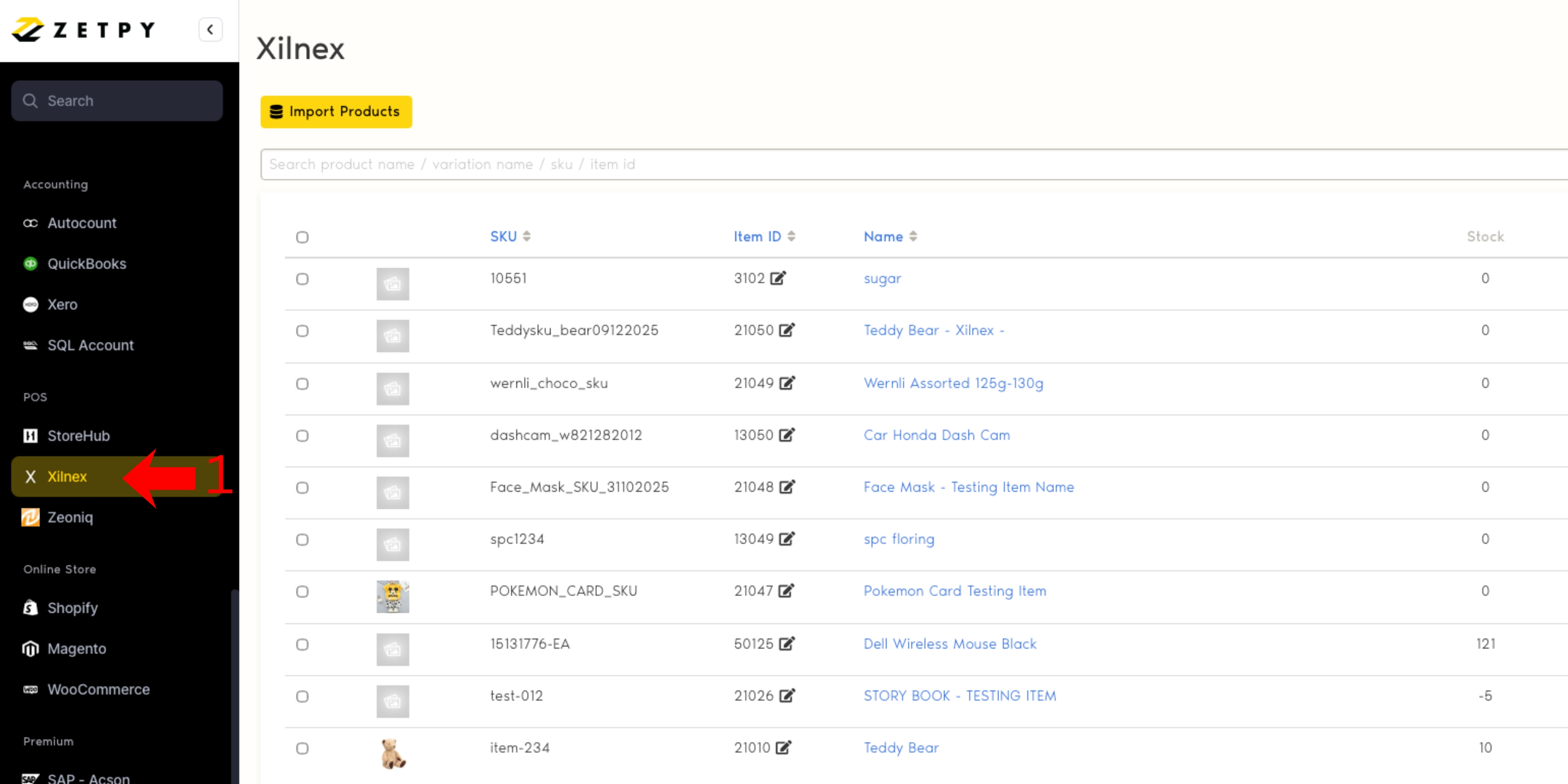
2) Look for the SKU that you want to remove and select it. After selecting, click on the Bin icon on the right to remove them.
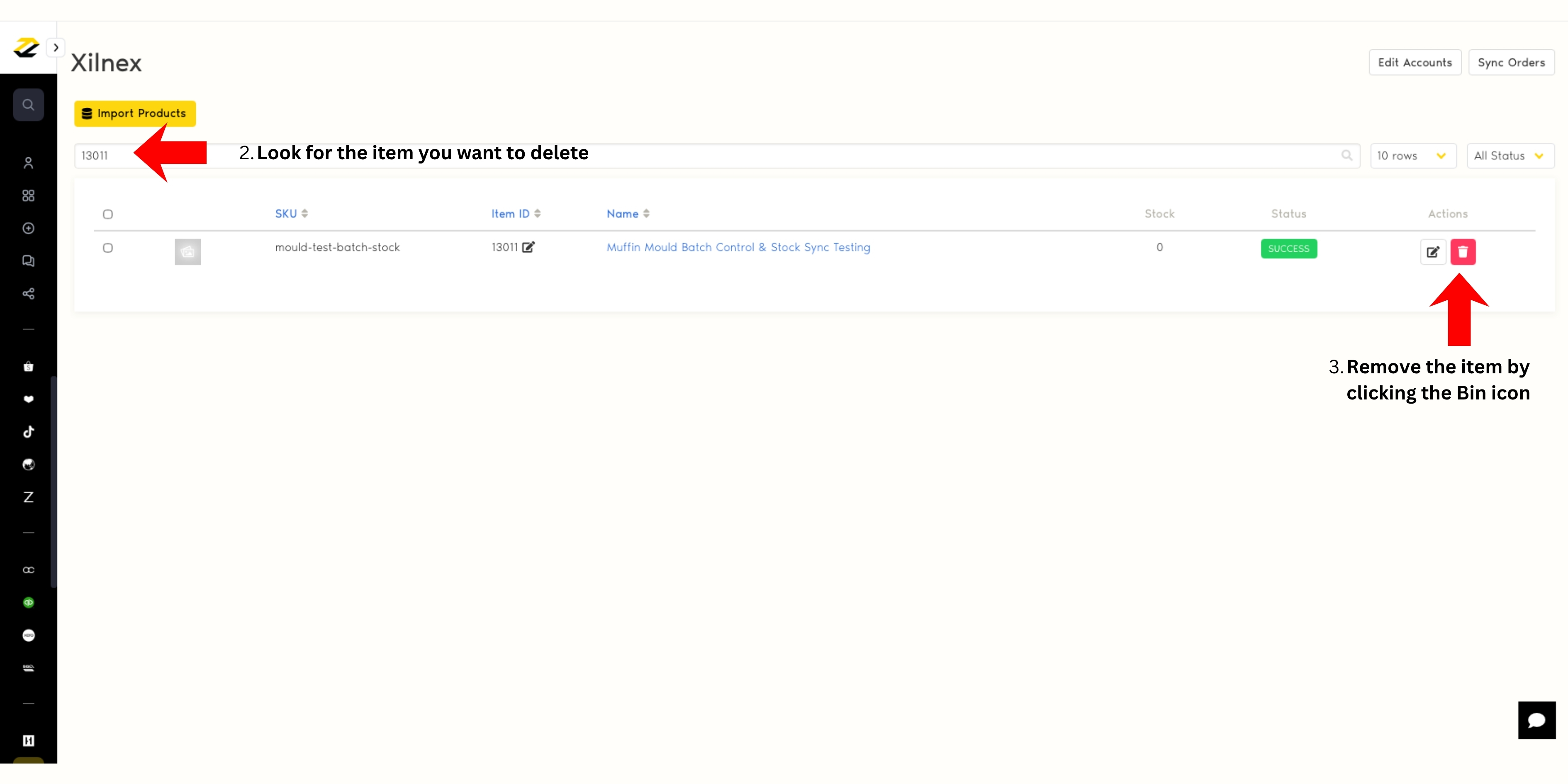
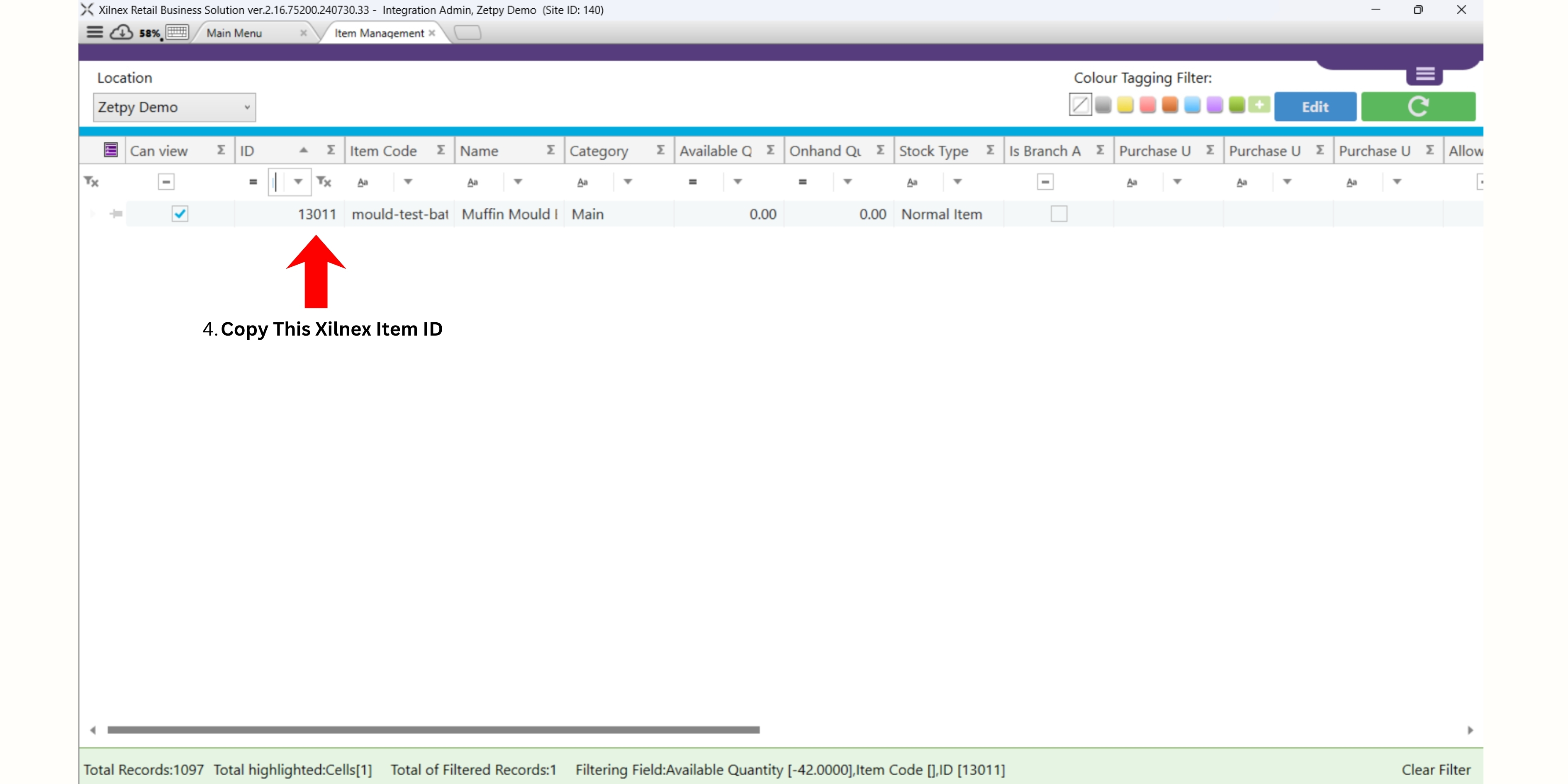
3) Once done, look for the item ID in your Xilnex POS System for the product you want to import into Zetpy.
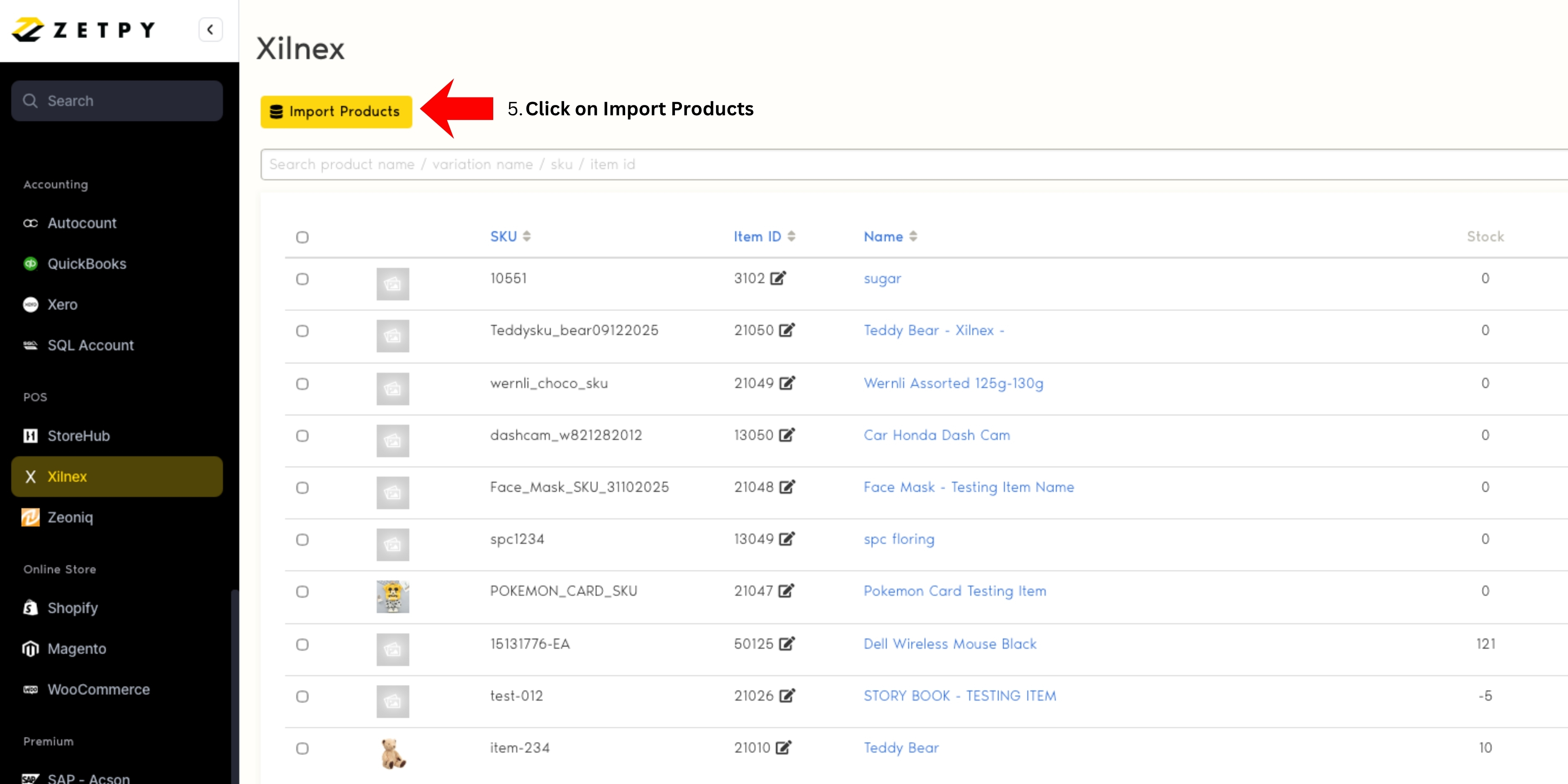
4) Then go to Zetpy Xilnex Plugin, and click on the Import Products button.
5) Select Choose Products, then key in the item ID from Xilnex and click Check.
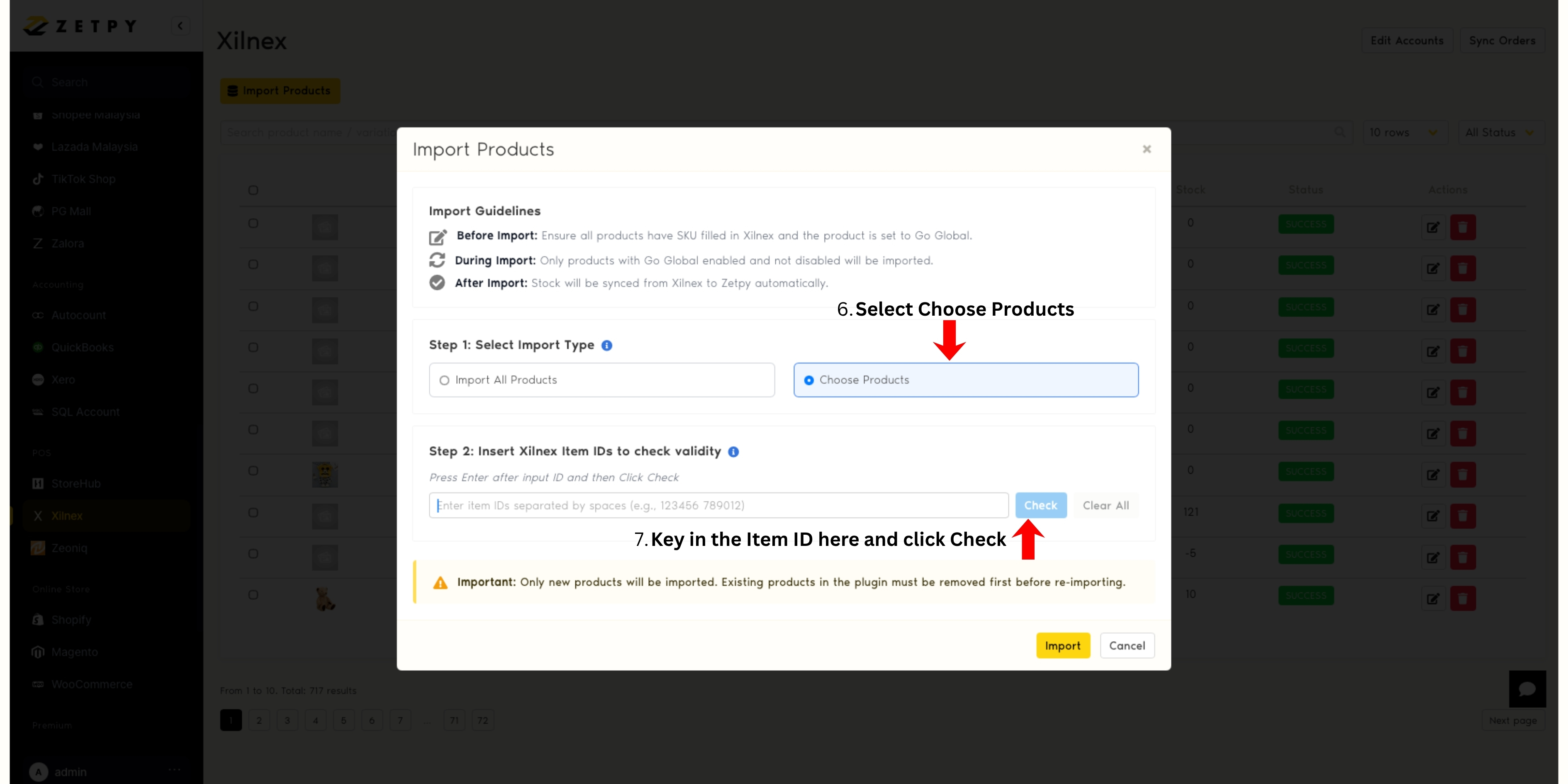
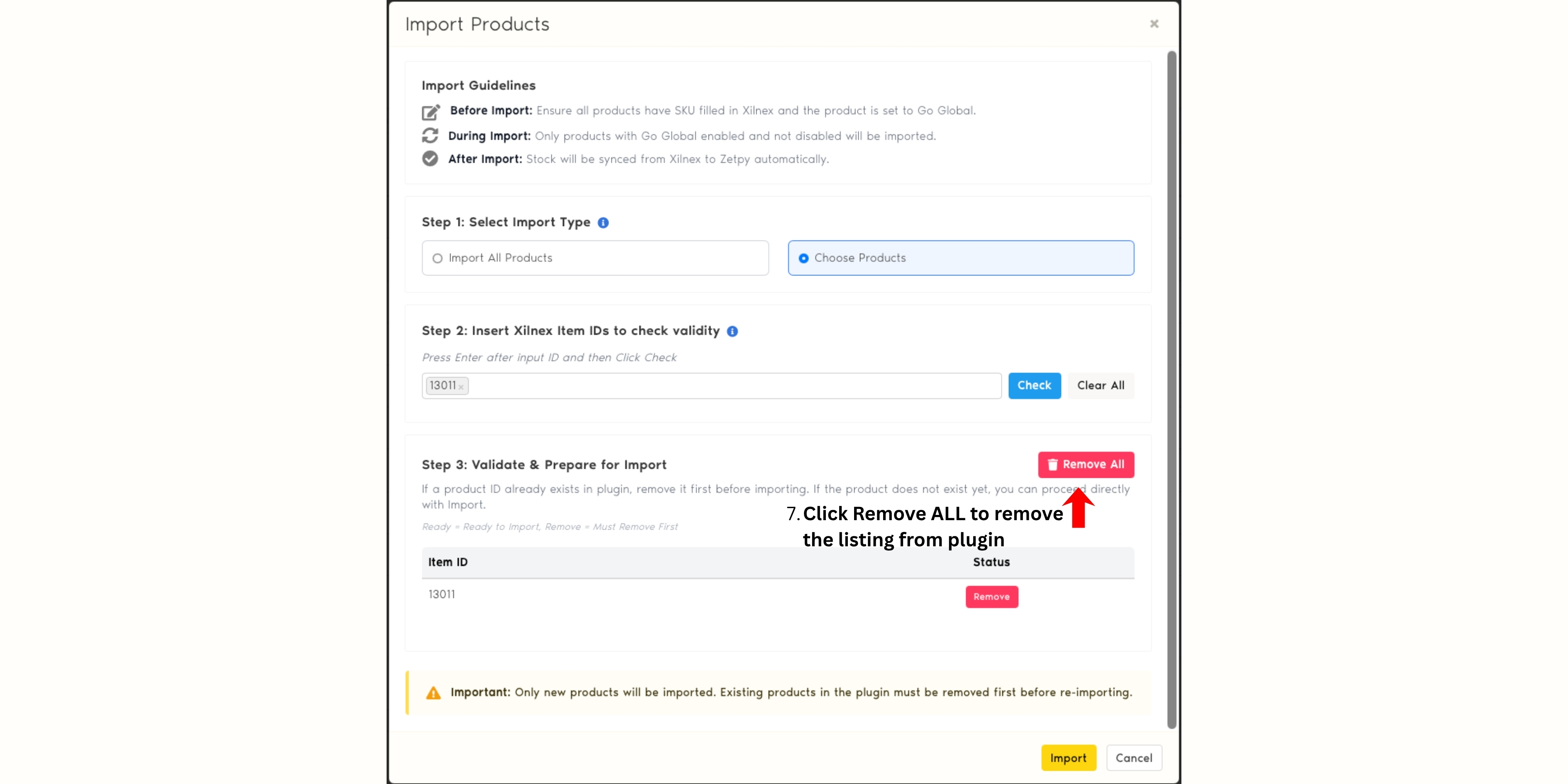
6) Click on Check, then Zetpy will check if the item ID exists in the plugin currently.
- If the Item ID currently exists in the plugin, the listing will be under Remove status, and you will need to remove it by clicking the Remove button.
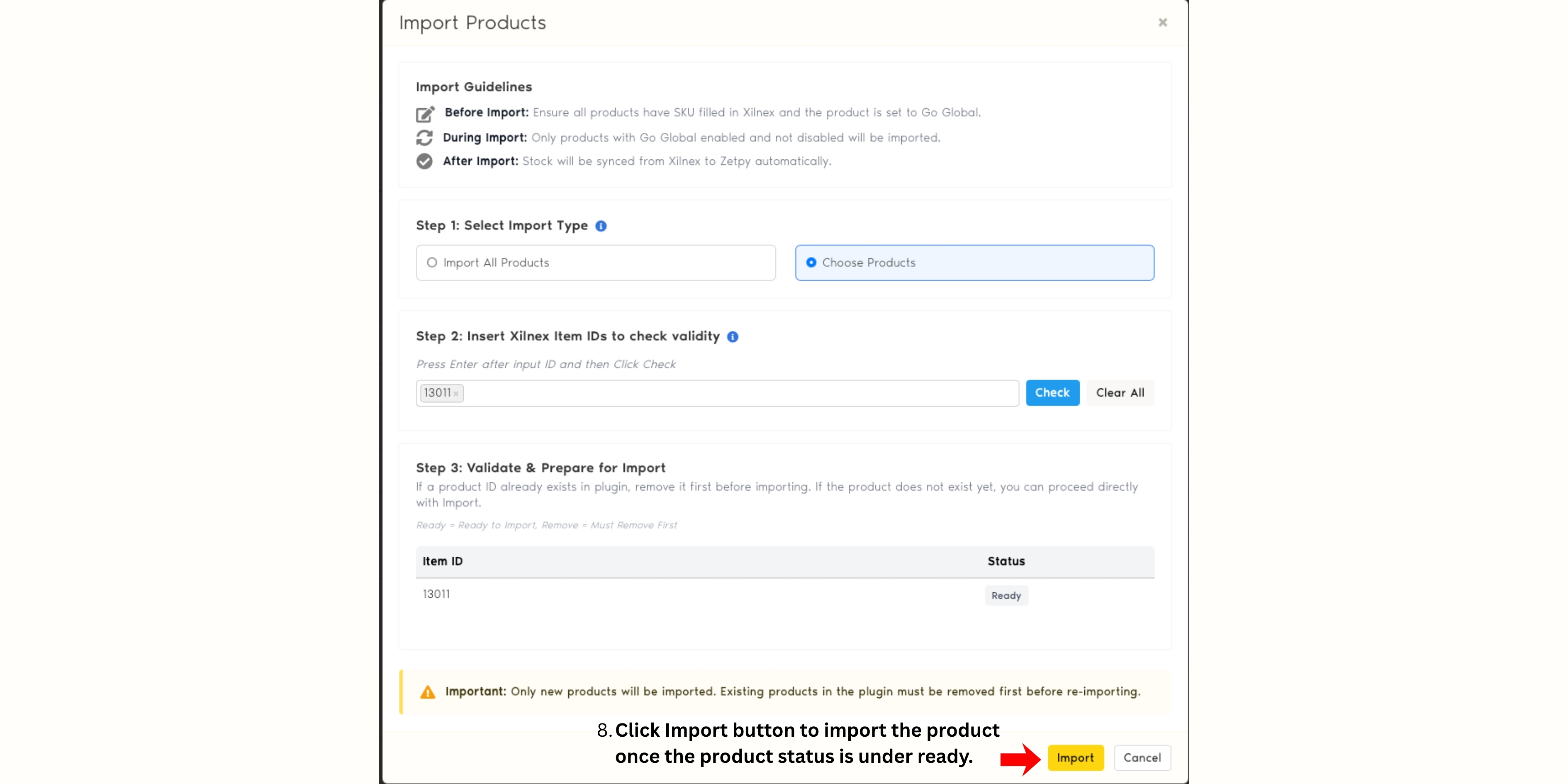
7) Once the Product Status is under Ready, click on the Import button to import the product into Xilnex.
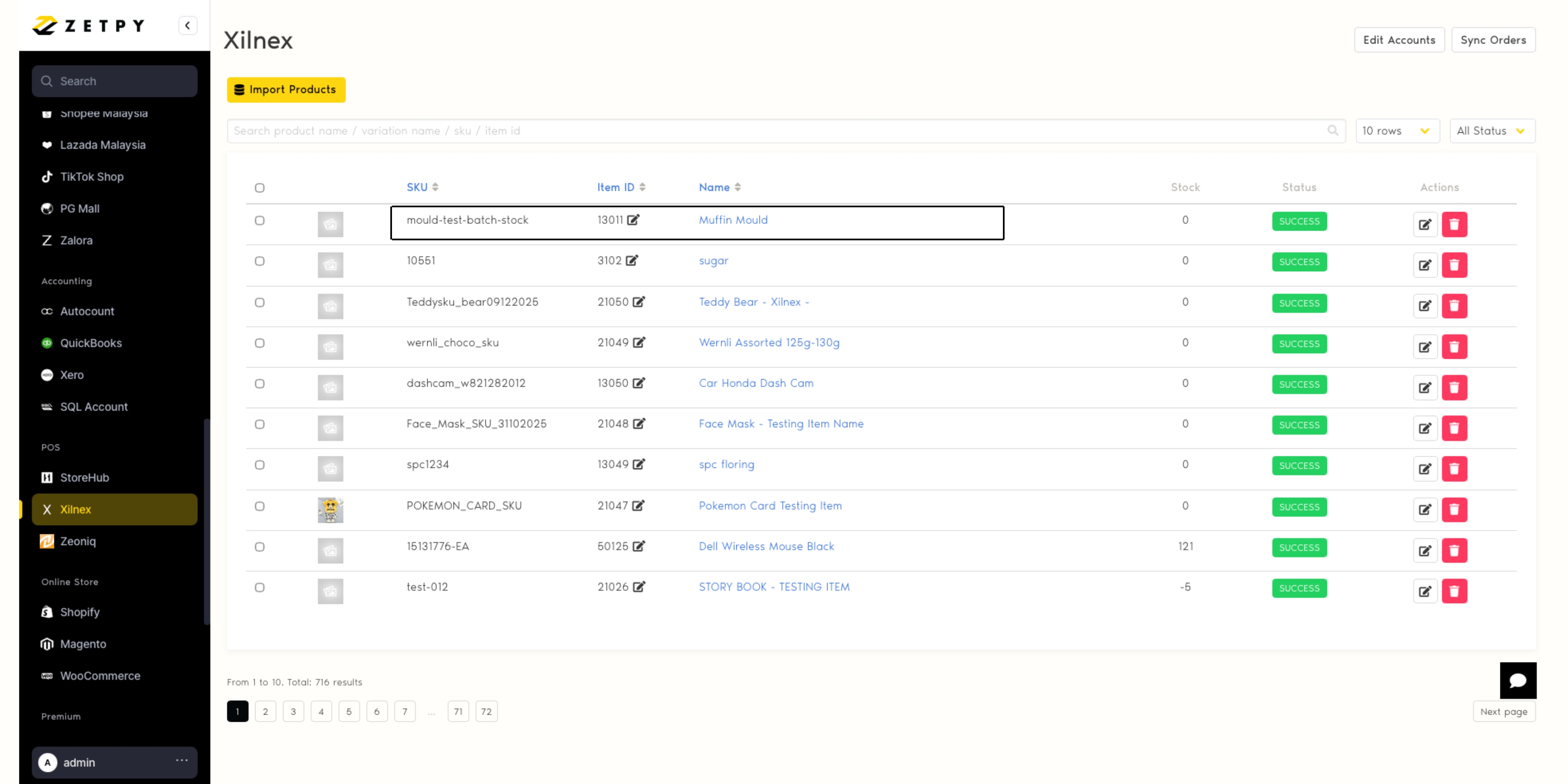
8) Double check the listing in Zetpy x Xilnex Plugin after importation is completed. You can now sync the listing to online marketplaces and Brands.com from Zetpy.
Questions? Contact our support team here.
Want to learn more about Zetpy x Xilnex Sync? Book a Demo here.