


You can:
Beautify an existing description
Generate a description from your product information
Generate a description using your product images
Translate your description into another language
Usage cost: 10 zCredits each time you generate a description.
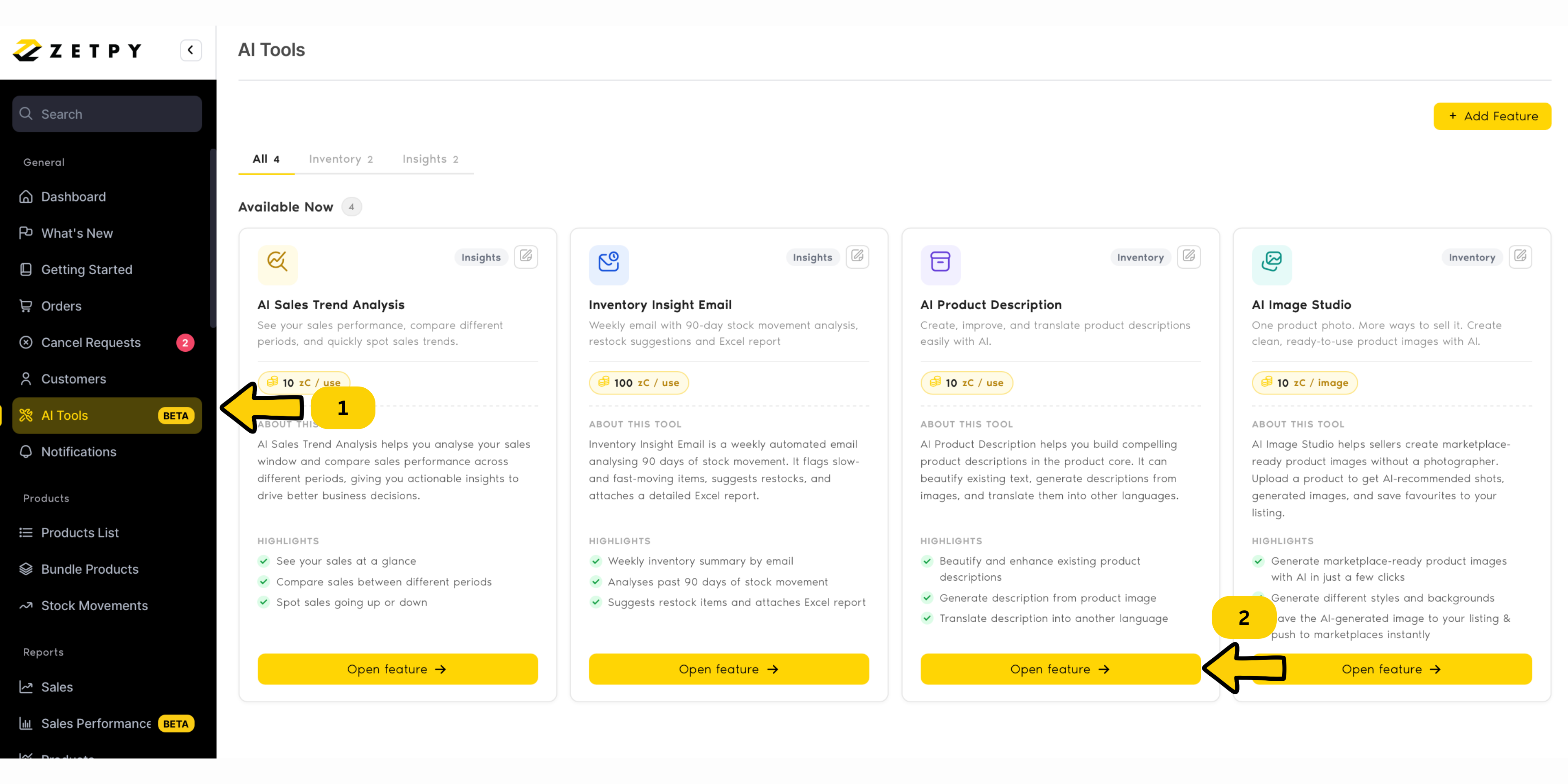
Step 1: Open a Product
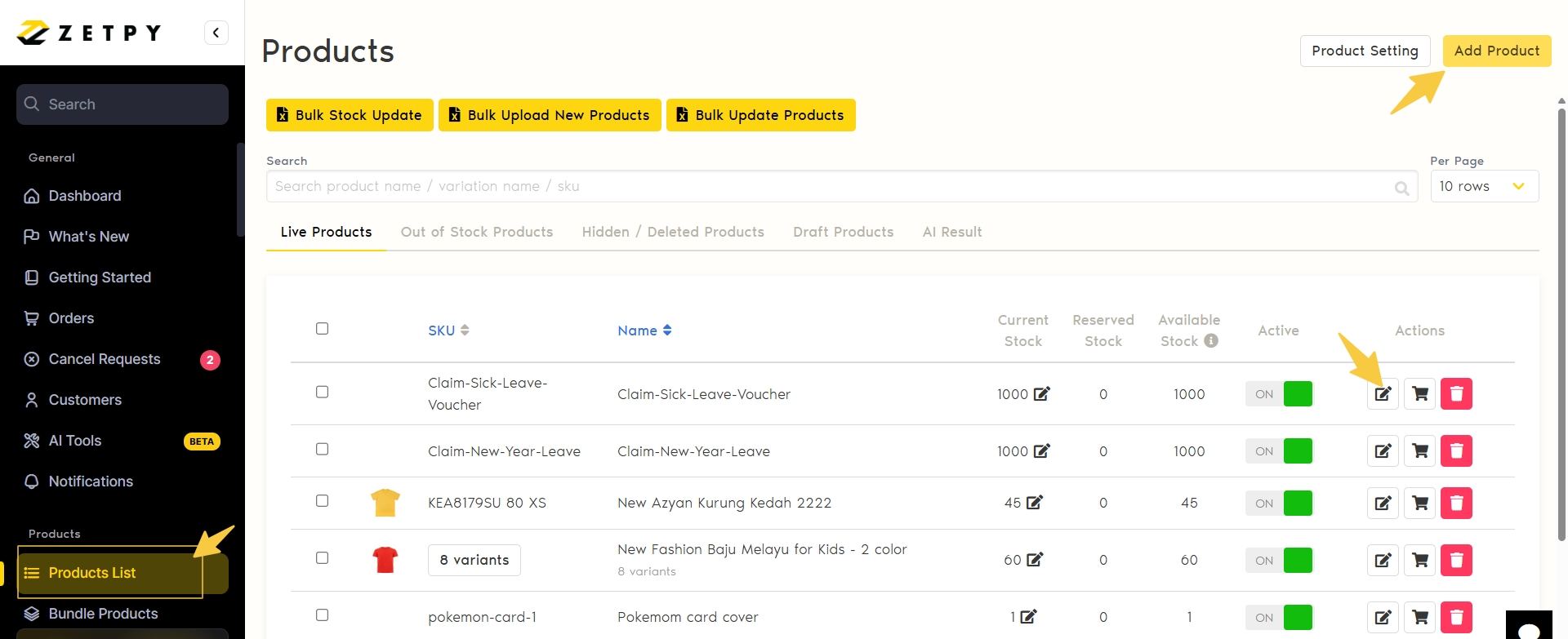
Go to Zetpy → Product List.
You can either open an existing product or click Add New Product to create a new one.
Once you are inside the Product Editor, look for the Short Description and Long Description sections.
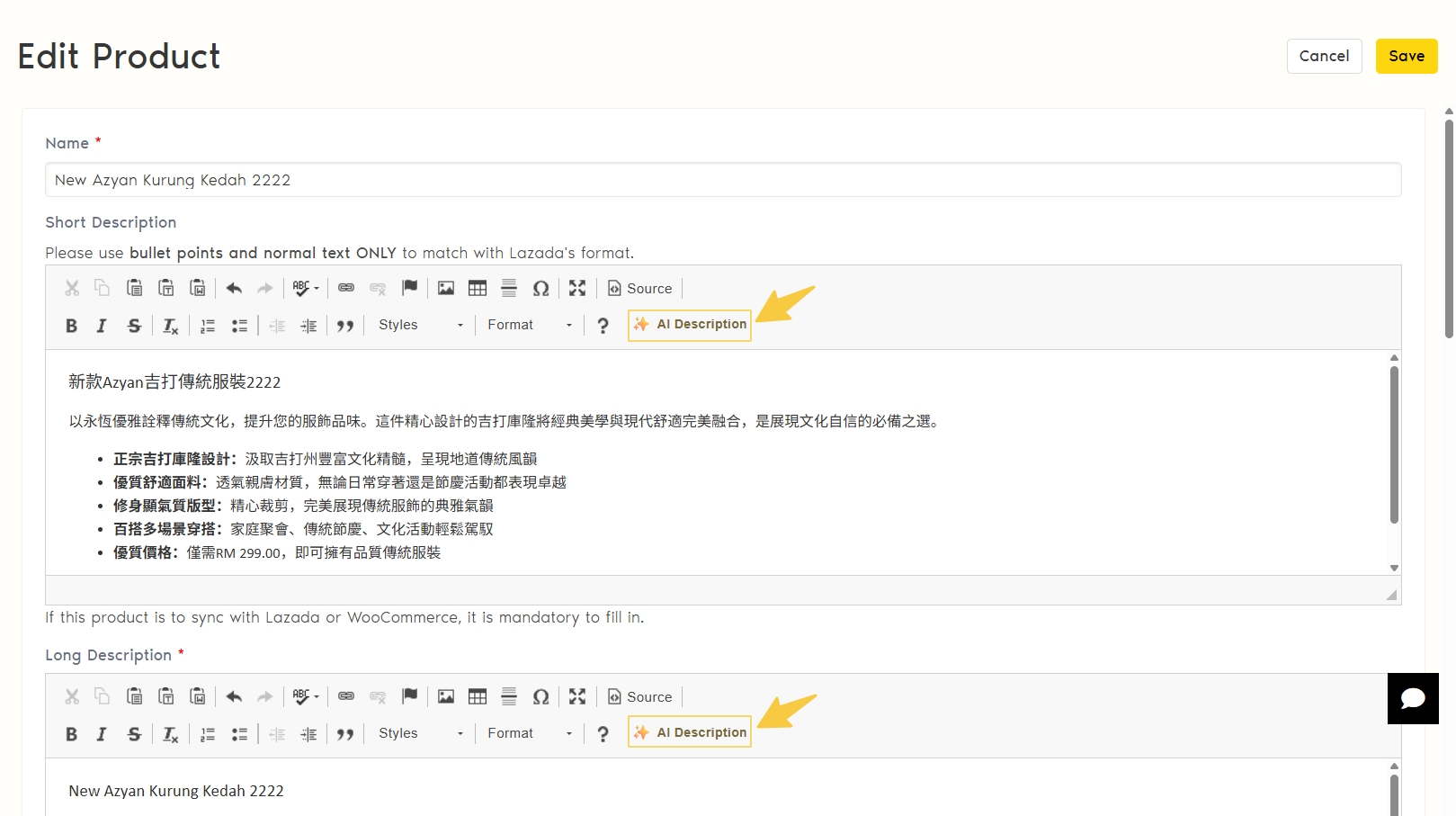
Step 2: Open AI Product Description
Inside the Short Description or Long Description editor, look for the ✨ AI Description button in the editor toolbar.
Click AI Description to open the AI Product Description window.
Tip: You can access the AI tool from either the Short Description or Long Description editor.
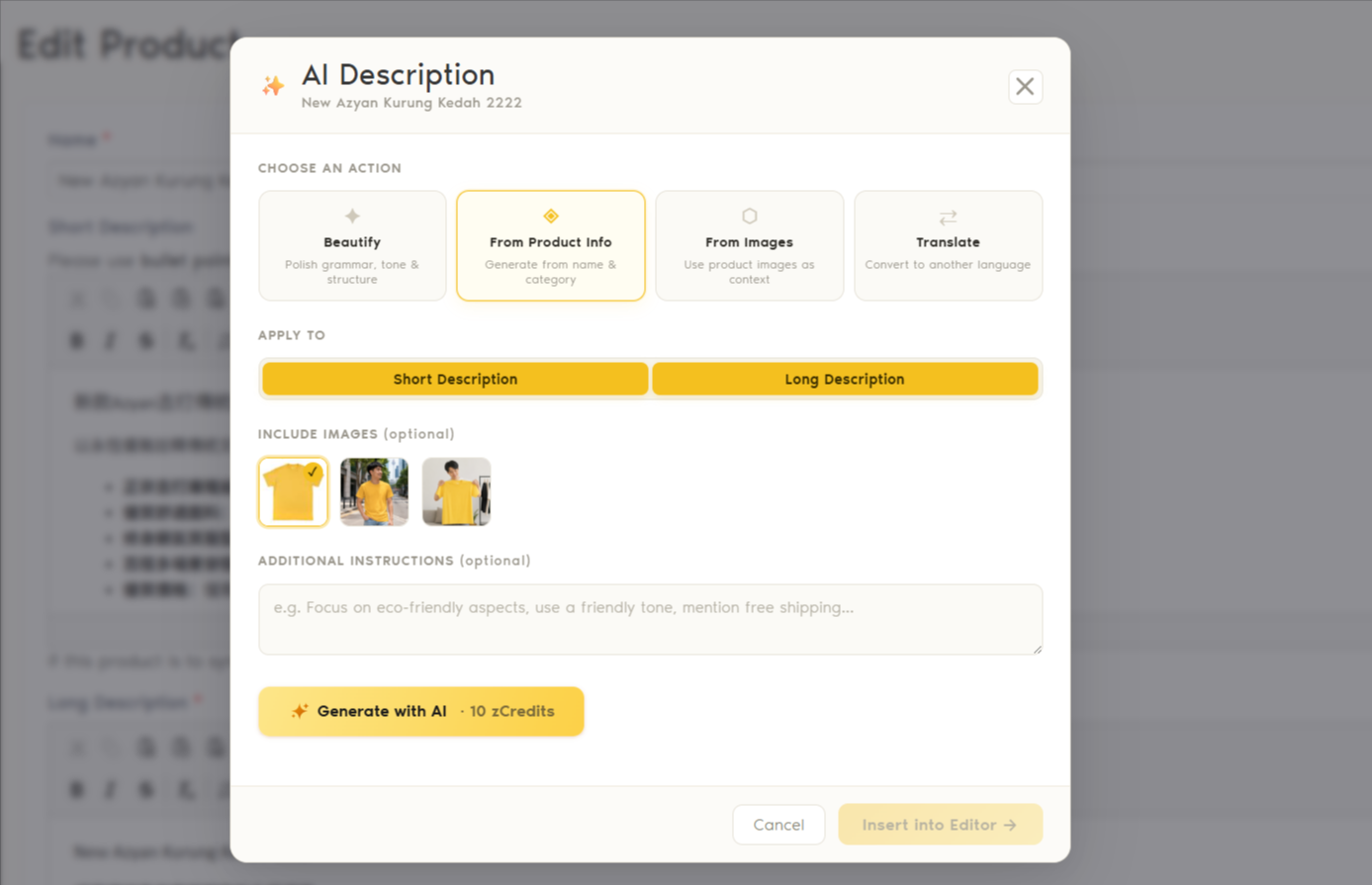
Step 3: Choose How You Want AI to Help
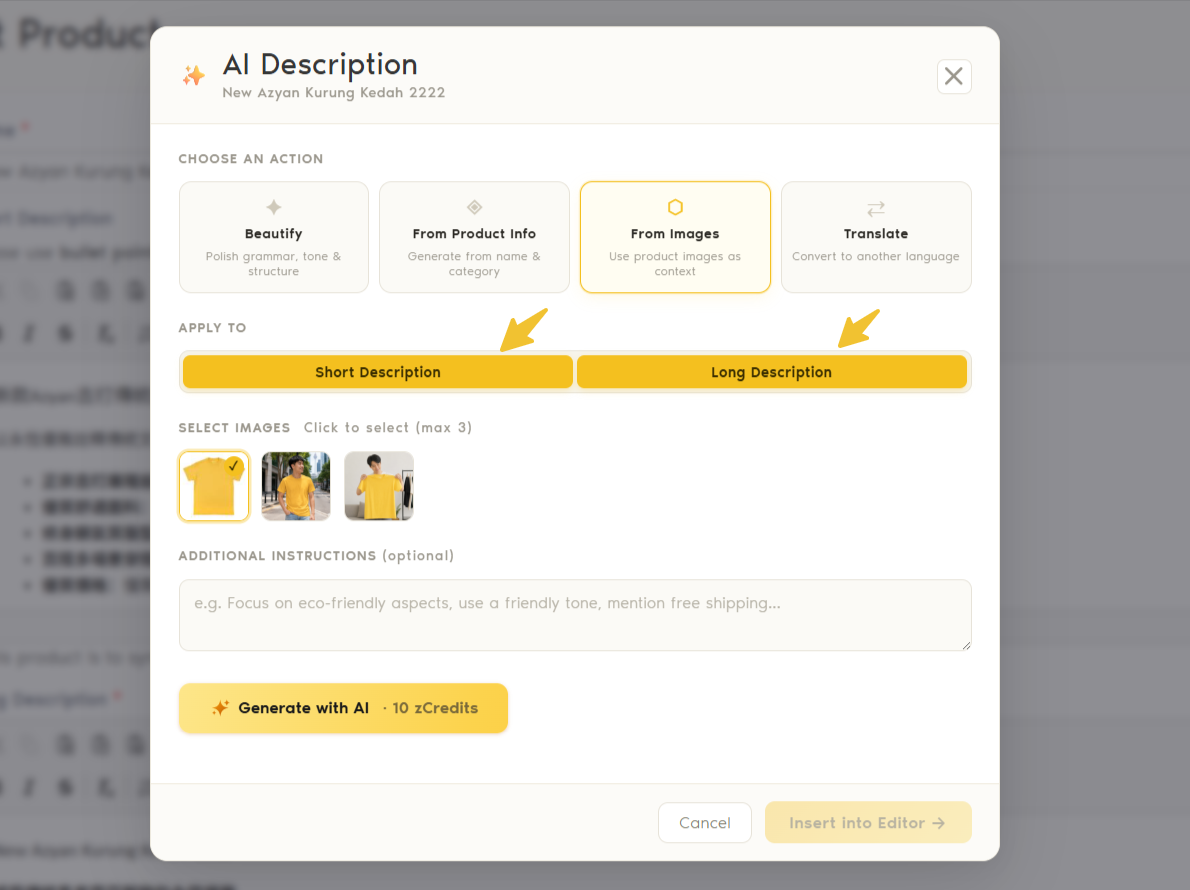
Inside AI Product Description, choose one of the four available actions.
Beautify
Already have a description? Choose Beautify to improve the grammar, tone, wording, and structure of your existing description.This is useful when your product information is already there, but you want to make it clearer and easier for customers to read.
From Product Info
Choose From Product Info to let AI create a description using the product information available in Zetpy, such as the product name and category.This is useful when you're creating a new product and don't have a description yet.
From Images
Choose From Images to let AI use your product images as context when creating the description.This is useful when your product photos contain enough information for AI to understand the product.
Translate
Already have a description but need it in another language?Choose Translate and select the language you want.
Step 4: Choose Short or Long Description
Under Apply To, choose where you want to use the generated content:
Short Description — for shorter, easy-to-read product information.
Long Description — for more detailed product information.
Step 5: Add Your Own Instructions (Optional)
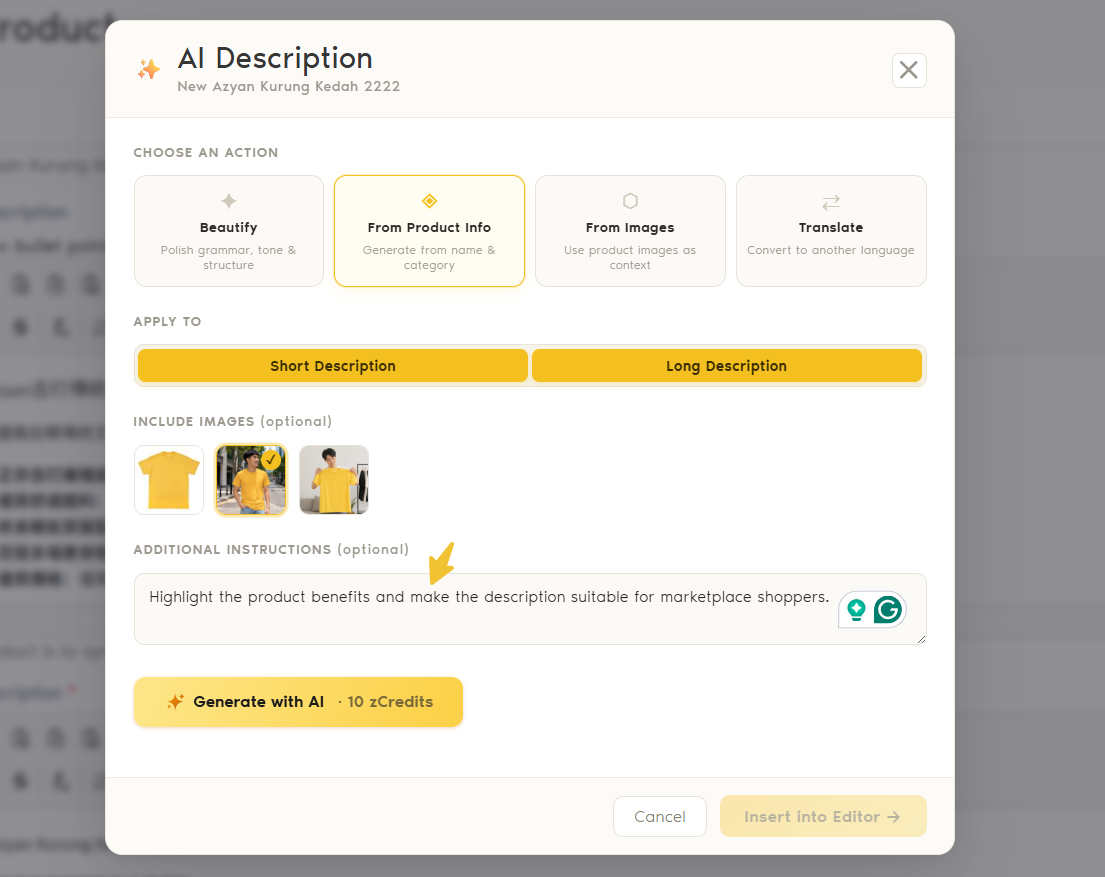
Want the AI to write the description in a particular way?
Use Additional Instructions to tell the AI what you want.
For example:
Focus on eco-friendly features and use a friendly tone.
Focus on eco-friendly features and use a friendly tone.
Or:
Highlight the product benefits and make the description suitable for marketplace shoppers.
This step is optional. If you don't have any special requirements, you can leave it blank.
Step 6: Generate Your Description
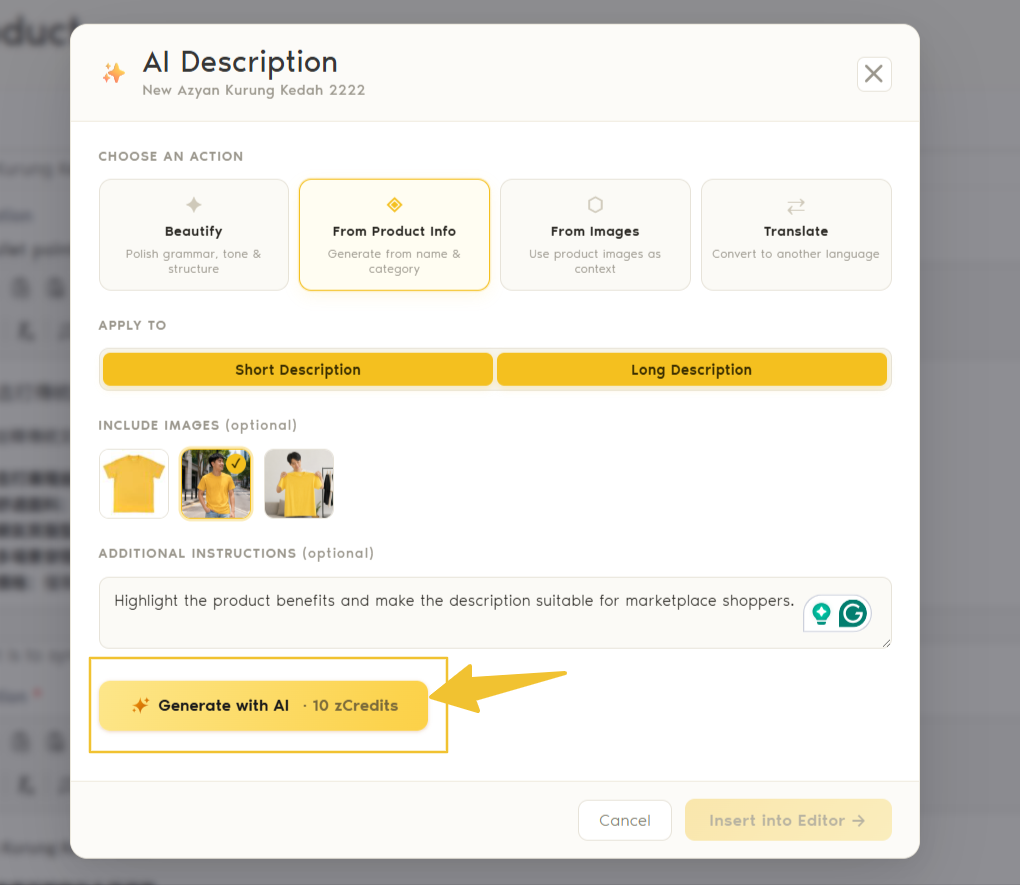
When you're ready, click the button:
✨ Generate with AI · 10 zCredits
AI will generate the description based on the option and information you've selected.
10 zCredits will be deducted each time you generate a description.
If you generate again, another 10 zCredits will be used.
Step 7: Review Before Adding
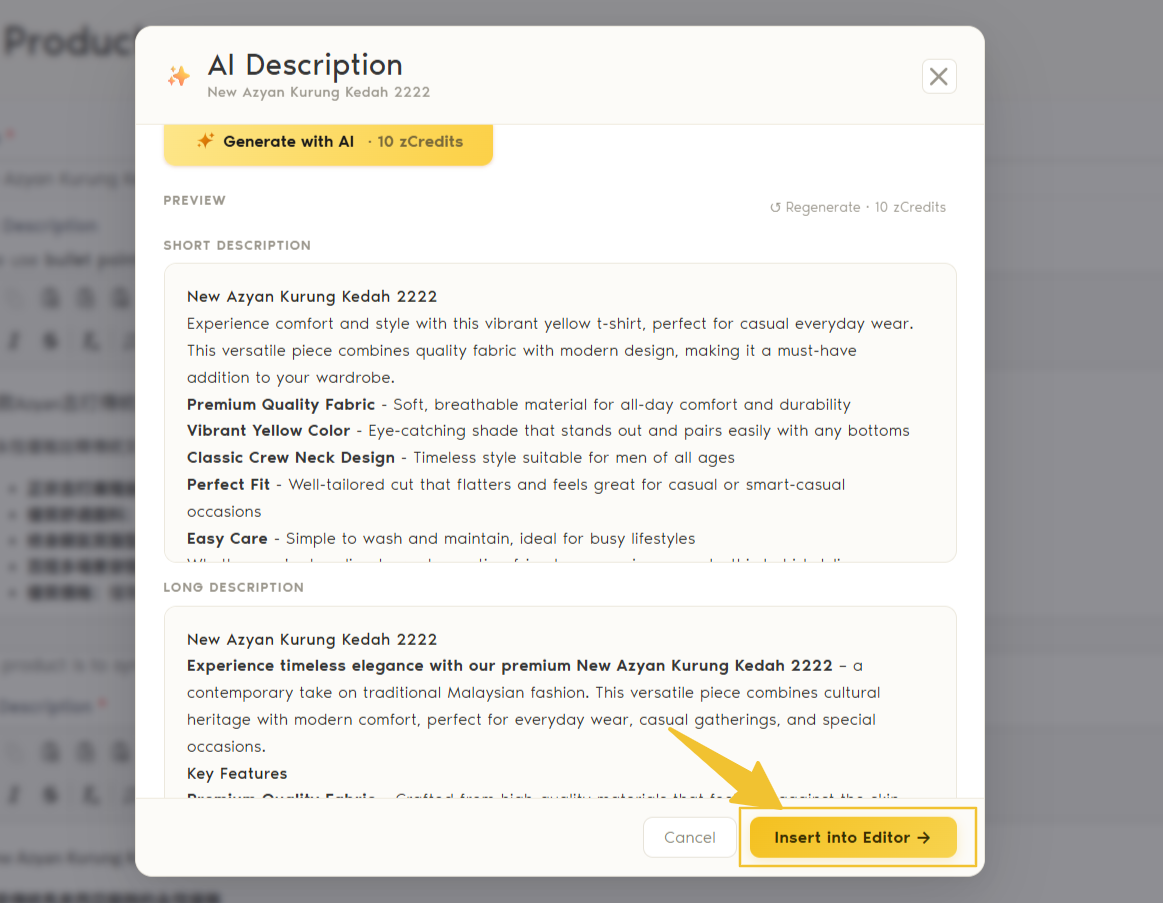
Always review the AI-generated content before adding it to your product.
Check important product information such as:
Product specifications
Measurements
Materials
Features
Compatibility
Warranty or other important selling information
AI-generated content may need some adjustments depending on your product.
Step 8: Insert into Your Product
Happy with the result?
Click Insert into Editor →.
The generated content will be added to your selected Short Description or Long Description editor.
You can still edit the content manually before saving your product.
Once everything looks good, click Save.
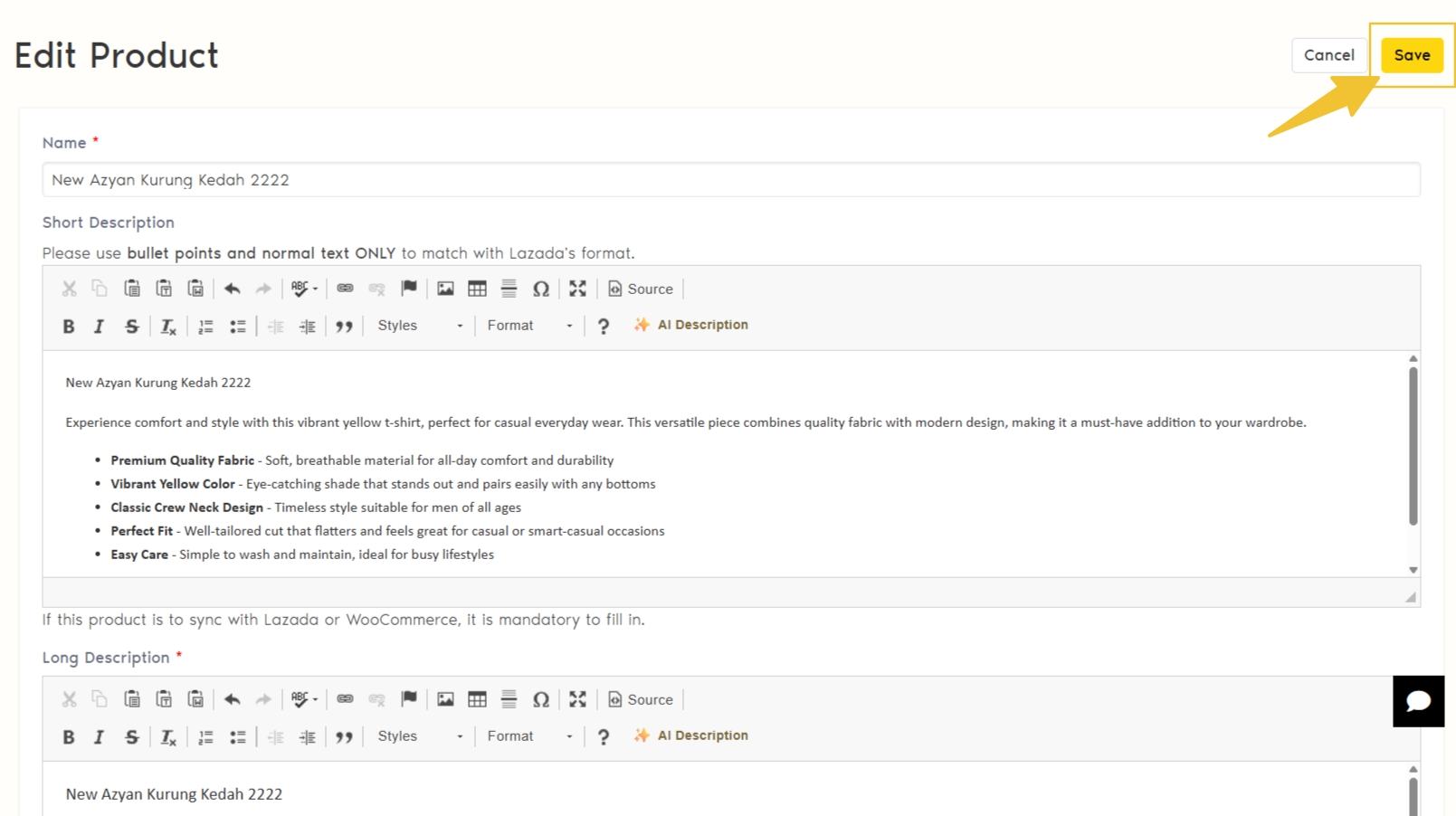
You may proceed to add the product to the connected marketplace you wish to sell on now.
Should you have any questions, feel free to contact our support team at support@zetpy.com